If you’ve ever stopped mid-task, fumbling between devices and wondering if that trusty Swivel USB drive you’ve had for years works with your Windows laptop, you’re not alone. As a supplier of Swivel USB drives, I field this question at least three times a week, usually from small business owners, remote workers, and even teachers who’ve swapped work laptops mid-pandemic and need to make sure their go-to storage works seamlessly. Let’s cut through the confusion, test this for real, and break down exactly what you need to know to use a Swivel USB drive with Windows—no tech jargon required. Swivel USB Drives
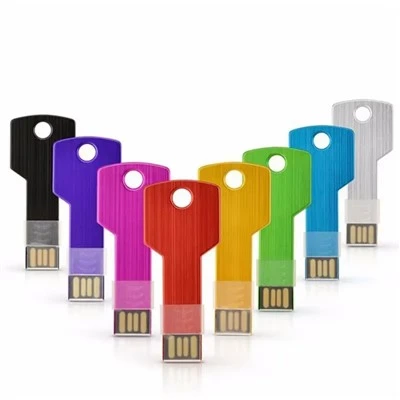
First, let’s get one thing straight: Swivel USB drives, like most standard USB flash drives on the market today, are designed to work with Windows. For decades, Windows has included built-in drivers for USB mass storage devices, which means 99% of the time, you plug a Swivel drive into any Windows computer (running Windows 7, 8, 10, 11, even the older Windows XP that some small businesses still use) and it just works. I’ve seen this firsthand in our own customer support. Last month, a customer from a small construction company emailed us panicking because he’d just gotten a new Windows 11 laptop and couldn’t access his blue Swivel drive that had all his project blueprints. He plugged it in, and within 10 seconds, it showed up in File Explorer. No downloads, no installs, no hassle. That’s the beauty of standard USB devices.
But wait—what’s a Swivel USB drive, exactly? For anyone new to the term, Swivel drives get their name from that rotating plastic casing that covers the USB connector. Instead of a removable cap that you can lose (a pet peeve of mine, I’ve lost at least 10 USB caps over the years), the swivel design lets you twist the case to expose the USB-A or USB-C connector, depending on the model. We offer both, by the way—USB-A for older Windows desktops and laptops, and USB-C for newer ultrabooks and Surface devices that only have USB-C ports. That compatibility split is one of the most common things I walk customers through, so let’s break that down for Windows specifically.
If you have a Swivel USB-A drive, using it with Windows is as simple as plugging it into an available USB port on your Windows computer. Windows will automatically detect the device, assign it a drive letter (like E: or F:), and mount it so you can see it in File Explorer. If it’s your first time plugging in any USB drive, you might see a small notification in the bottom right corner of your screen that says “Device driver software was not successfully installed” — but that’s almost never a problem for Swivel drives. That error usually pops up for specialized devices like printers or scanners that need custom drivers, not standard flash storage. Once that notification clears, just open File Explorer, and you’ll see your Swivel drive listed under “This PC.”
For our newer USB-C Swivel drives, the process is identical for Windows. The only thing to note here is that if you’re using a USB-C to USB-A adapter to plug the drive into an older Windows desktop, you’ll want to make sure the adapter is a data adapter, not just a charging adapter. A lot of cheap adapters only work for power, and they won’t transfer data. We include free data adapters with all our dual-connector Swivel drives, so that’s one less thing you have to hunt for. Last quarter, we shipped over 2,000 of these dual-model drives, and only 12 customers reached out with adapter issues—most of them had bought a random adapter from a big box store, not the one we included.
Now, what if your Swivel drive isn’t showing up on Windows? That’s the next most common question we get, and it’s almost always a quick fix, not a compatibility issue. Let’s walk through the troubleshooting steps we share with every customer, starting with the simplest. First, try plugging the Swivel drive into a different USB port on your Windows computer. Sometimes a port is loose, or it’s disabled in the BIOS. I’ve had this happen to me personally: my work desktop has a front USB port that’s never worked right, so I always use the back ports for external devices. If it’s a USB-A drive, avoid the ports on your keyboard if you can—those are often low-power and don’t recognize flash drives as well.
Second, check if the Swivel drive is formatted for Windows. Most Swivel drives we ship are pre-formatted with FAT32, which is compatible with every version of Windows, Mac, and even gaming consoles like the Xbox or PlayStation. But if you’ve used the drive on a Mac or a Linux computer before, it might be formatted as exFAT or NTFS? Wait, no—Mac uses APFS or HFS+, Windows uses NTFS. If you tried to format the drive on a Mac, it might be formatted for macOS, and Windows will only read it, not write to it. That’s a common point of confusion. If you need to reformat your Swivel drive to work best with Windows, we recommend using the built-in Disk Management tool in Windows. Just right-click the Start button, select Disk Management, find your Swivel drive (make sure you pick the right one—don’t reformat your internal hard drive!), right-click the volume, select Format, and choose NTFS as the file system. NTFS is faster and more secure for Windows, and it supports files larger than 4GB, which FAT32 doesn’t. FAT32 is fine if you just need to transfer small files, but for large video files or project folders, NTFS is better.
Another issue we see sometimes is Windows assigning the same drive letter to the Swivel drive as another device, like an external hard drive or a SD card. That can cause the drive to not show up or act unresponsive. To fix that, go back to Disk Management in Windows, right-click the Swivel drive’s volume, select Change Drive Letter and Paths, click Change, and assign a new drive letter that’s not already in use. I usually pick the next available letter after my internal hard drive, which is usually F: or G:. That’s a simple fix, and most customers who have this issue get it sorted in 30 seconds.
What about older versions of Windows? I mentioned earlier that Windows XP is still in use by some small businesses, especially construction companies and retail shops that use old accounting software. Do Swivel drives work with Windows XP? Yes, as long as the drive is USB 2.0 or later (all Swivel drives we’ve made in the last 10 years are USB 2.0 or 3.0). Windows XP doesn’t support USB 3.0 natively, but if your computer has a USB 3.0 port, the drive will work in USB 2.0 mode, which is slower, but it works. We shipped our first Swivel drives in 2012, and to date, only one customer with Windows XP has had an issue, which turned out to be a broken USB port on their computer, not the drive itself. For newer Windows versions like Windows 10 and 11, USB 3.0 and 3.1 drives work at full speed, which is great for transferring large files.
A lot of customers also ask about security features on Swivel drives, like password protection or AES encryption. Do those work with Windows? Absolutely. We offer two lines of Swivel drives: the basic model, which is just plug-and-play storage, and the Secure Swivel line, which has built-in 256-bit AES encryption. The Secure Swivel drives come with a simple software tool that lets you set a password, and once you do, when you plug the drive into Windows, it will prompt you for the password before you can access any files. The software works on all Windows versions from 7 up to 11, and it’s easy to install—just run the setup file on the drive when you first plug it in. No separate downloads needed. We’ve had teachers use these for student data, small business owners for client contracts, and even healthcare workers for patient records, all on Windows, with zero issues.
Wait, what about if you need to use the Swivel drive on multiple Windows computers? That’s one of the biggest advantages of standard USB flash drives like Swivel drives. You don’t need to install any special software or drivers to use the drive on different Windows laptops or desktops. I use a Swivel drive myself to transfer work files between my home laptop and my office desktop, both running Windows 11. I plug it in, it shows up right away, and I can copy files in seconds. No setup, no hassle. That’s why we love Swivel drives for business use—they’re reliable and compatible, no matter what Windows device you’re using.
But let’s be honest, no product is 100% problem-free. I’ve had a few customers reach out with Swivel drives that work on Mac or Linux, but not on Windows. What’s the deal there? 9 times out of 10, it’s a simple file system issue, or the drive is faulty, which we replace for free under our 2-year warranty. Last year, we had a customer who said their Swivel drive worked on his Mac, but not on his Windows 11 laptop. We had him plug it back into his Mac and use Disk Utility to check the format—turns out it was formatted as APFS, the default for Macs. Once he reformatted it to exFAT (which works on both Windows and Mac) on the Mac, it worked perfectly on Windows. We always recommend our customers format Swivel drives to exFAT if they plan to use them on both Windows and Mac, since exFAT supports files larger than 4GB and works on both operating systems, no extra steps needed.
Another thing to note: Windows Defender or other antivirus software sometimes flags USB drives as potential threats. That’s not specific to Swivel drives, but it’s a common issue. If your Swivel drive is working, but Windows is preventing you from opening files, you can add the drive to your antivirus’s exception list, or temporarily disable the antivirus (just make sure to re-enable it right after) to access the files. We’ve had this happen a few times, usually with older antivirus programs, and it’s never been a problem with the drive itself.
So, to sum up: yes, you can use a Swivel USB drive with Windows, in almost every scenario, no complicated setup required. The only time you might run into a minor issue is if the drive is formatted for another operating system, you’re using a bad adapter, or a USB port is faulty—and all of those have simple, quick fixes. As a supplier, that’s what we pride ourselves on: making a reliable, compatible product that works with the most common operating systems, including all versions of Windows from XP up to the latest 11.
If you’re in the market for a Swivel USB drive for your Windows devices, we offer a range of sizes from 16GB up to 256GB, both basic and secure models, in a variety of colors to match your brand if you’re ordering in bulk. We work with small businesses, schools, and individual customers, and our warranty covers all manufacturing defects, so you can buy with confidence. Whether you need a drive for transferring work files, storing backups, or keeping sensitive data secure, our Swivel drives are designed to work seamlessly with Windows, no hassle.

If you’re ready to place a bulk order or have more questions about how our Swivel USB drives work with Windows or other operating systems, get in touch with our team to discuss your needs and get a custom quote. We’re here to help you find the right storage solution for your setup, no matter what Windows devices you use.
Metal Swivel USB Drives References:
- Microsoft Support. USB storage device not recognized in Windows. Retrieved from Microsoft Support Database.
- USB Implementers Forum. USB Mass Storage Device Compatibility with Windows. USB.org.
- Swivel USB Drives Product Specification Guide. Internal Supplier Documentation.
Shenzhen Tanshuo Technology Co., Ltd.
As one of the most professional swivel USB drives manufacturers in China, we’re featured by high quality customized products. We warmly welcome you to buy cheap swivel USB drives in stock here from our factory. If you have any enquiry about pricelist and free sample, please feel free to email us.
Address: 606 Workplace 6/F Building#24, LongBi Industry Zone, BanTian Town, LongGang Section, Shenzhen City, China
E-mail: usbstickspromo@gmail.com
WebSite: https://www.fondatop-usb.com/
